

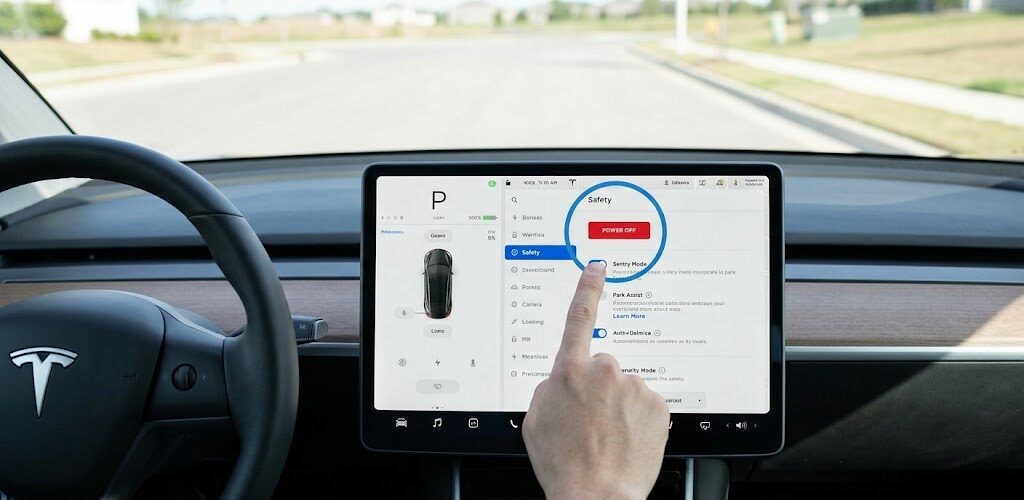
Unlike traditional internal combustion engine (ICE) vehicles, the Tesla Model 3 doesn’t have a physical ignition switch or a “Start/Stop” button. Because Teslas are essentially high-performance computers on wheels, the “powering off” process is managed automatically by the vehicle’s software.
However, there are specific scenarios—such as performing maintenance, sitting in the car for a long duration, or troubleshooting software glitches—where you may need to manually power down the vehicle.
The Quick Answer: How Do I Turn Off My Tesla?
For most daily use, you do not need to manually turn off a Tesla Model 3. When you put the car in Park, exit the vehicle, and close the door, the Model 3 automatically powers down the cabin and electronics to save energy.
3 Ways to Power Down Your Tesla Model 3
1. The Automatic Method (Standard Daily Use)
The Model 3 is designed to be “always ready.” To turn it off:
-
Shift the car into Park.
-
Exit the vehicle with your phone key or key card.
-
Once the doors lock, the car enters a low-power state. The touchscreen turns off, and non-essential systems are deactivated.
2. The Manual Method (Via Touchscreen)
If you are remaining inside the car (e.g., waiting at a charging station or resting) and want to shut everything off manually:
-
Sit in the driver’s seat and ensure all doors are closed.
-
On the touchscreen, tap Controls (the car icon).
-
Navigate to the Safety tab.
-
Scroll down and tap the Power Off button.
-
Important: Do not touch the screen, pedals, or open the doors for at least two minutes. Doing so will wake the car back up instantly.
3. The “Deep Sleep” Mode (For Battery Conservation)
If you are leaving your car at an airport or in storage, you want it to enter “Deep Sleep” to prevent “Phantom Drain.” To ensure your Model 3 stays off:
-
Disable Sentry Mode: Go to Controls > Safety > Sentry Mode > Off.
-
Turn off Cabin Overheat Protection: Go to Controls > Safety > Cabin Overheat Protection > Off.
-
Close the Tesla App: Constantly checking the app on your phone “wakes up” the car and consumes battery.
How to Perform a “Hard Reset” (Power Cycling)
If your touchscreen is frozen or the car is behaving erratically, a simple “Power Off” might not be enough. You may need to perform a scroll wheel reset.
-
Shift into Park.
-
Press and hold both scroll wheels on the steering wheel simultaneously.
-
Hold until the touchscreen goes black.
-
After a few seconds, the Tesla “T” logo will appear, indicating the system is rebooting.
Why Is There No “Off” Button?
Tesla utilizes a Power Management System that never truly turns the car “zero-percent off” unless the 12V and High Voltage batteries are physically disconnected. The car stays in a “standby” mode to:
-
Run background software updates.
-
Monitor battery temperature (Thermal Management).
-
Maintain security features like Sentry Mode.
Troubleshooting: Why Won’t My Tesla Turn Off?
If your screen stays on after you leave the car, check the following:
-
Occupancy Sensor: Ensure no heavy objects are left on the seats, which might trick the car into thinking someone is still inside.
-
Keep Climate On: Check if “Dog Mode,” “Camp Mode,” or “Keep Climate On” is active.
-
Door Latches: Ensure all doors and the trunk are fully latched.



Leave a Reply