

Owning a Tesla Model 3 means transitioning from a physical key mindset to a digital-first ecosystem. While the car is designed to be “set it and forget it,” knowing the nuances of the 2026 software security updates is vital for any owner.
1. The Hands-Free Way: Walk-Away Door Lock
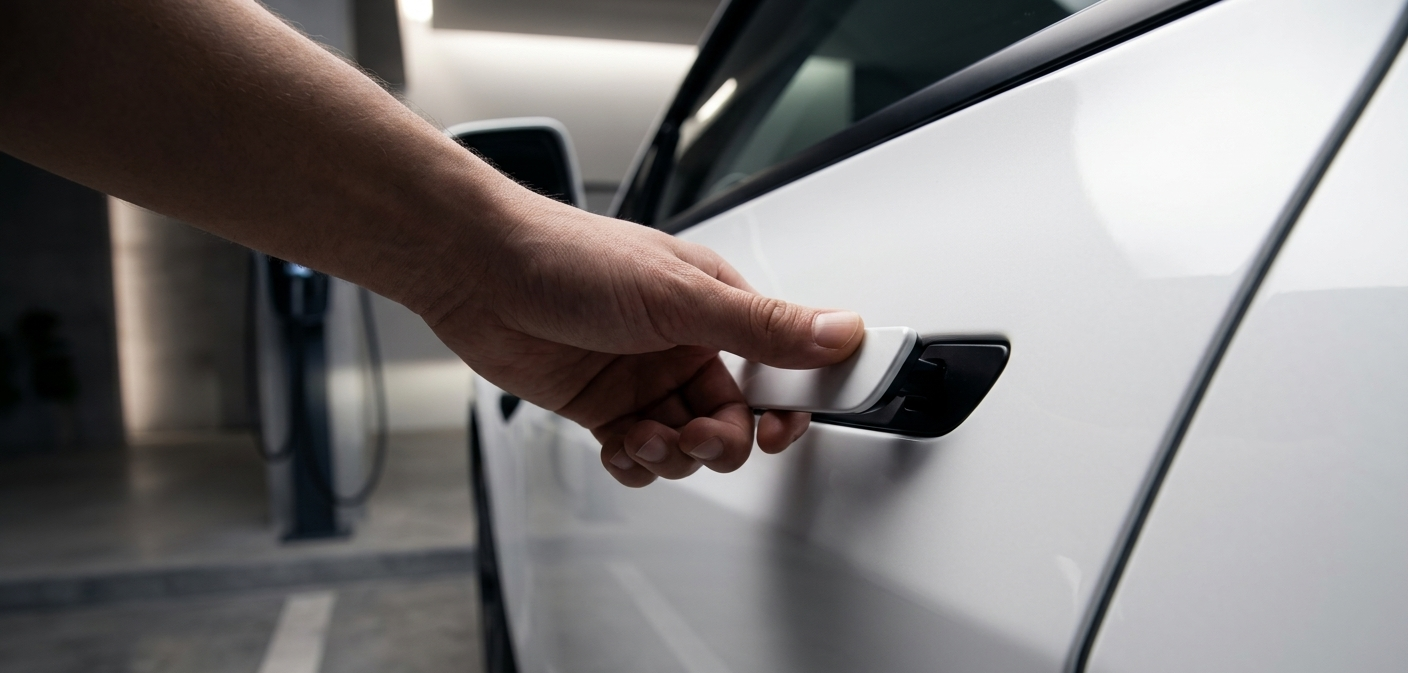
The most seamless method is the Walk-Away Door Lock. Your Model 3 uses Bluetooth Low Energy (BLE) to detect your Phone Key’s proximity.
How to Enable It:
-
Tap the Controls (Car Icon) on your touchscreen.
-
Navigate to Locks.
-
Toggle Walk-Away Door Lock to ON.
-
Pro Tip: Enable Lock Confirmation Sound. In the latest 2026 updates, you can customize this sound (e.g., a “chirp” or custom audio) via the Toybox > Boombox > Lock Sound.
2. The Remote Way: Tesla Mobile App
If you’ve already entered a building and can’t remember if you locked the car, the Tesla App provides instant peace of mind.
-
Open the Tesla App.
-
Tap the Padlock Icon on the main visualization screen.
-
When the icon turns closed and blue, the vehicle is locked.
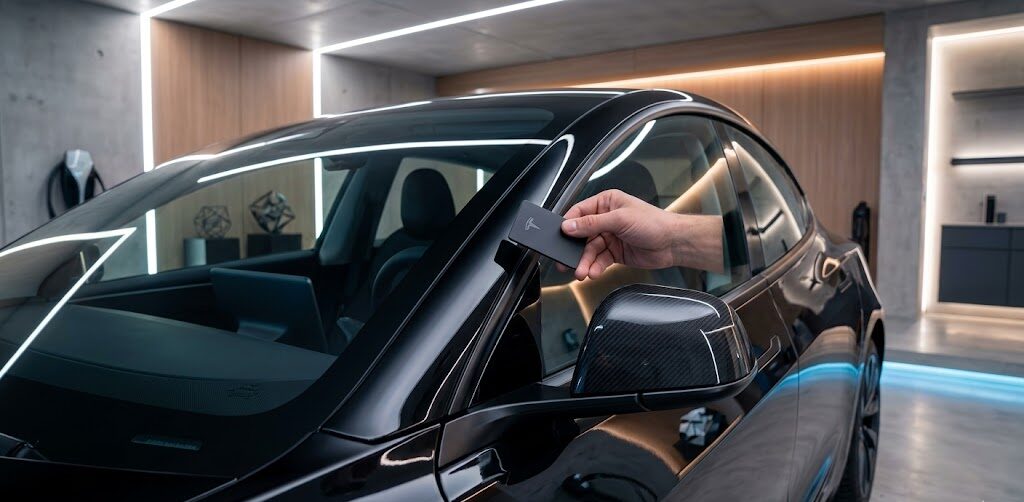
3. The Physical Backup: Key Card (NFC)
If your phone battery dies or you are using a valet, the Key Card is your primary tool.
-
The Sweet Spot: Tap your key card on the B-pillar (the black glass trim between the front and rear doors on the driver’s side).
-
Confirmation: The exterior lights will flash once, and the mirrors will fold inward.
4. Manual Locking (From Inside)
For personal safety while parked, you can lock the doors manually without exiting:
-
Tap the Lock Icon located at the top of the touchscreen.
-
Alternatively, you can now use a Voice Command: Press the right scroll wheel and say “Lock the doors.”
Why Won’t My Tesla Lock? (Troubleshooting 2026)
If you walk away and the mirrors don’t fold, one of these “Lock Inhibitors” is likely active:
-
Door/Trunk Ajar: If any door or the front/rear trunk isn’t fully latched, the car will stay unlocked.
-
Key Left Inside: If a secondary phone key or a key card is detected inside the cabin, Walk-Away Lock is automatically disabled to prevent lockouts.
-
“Exclude Home” Feature: Check if Exclude Home is checked in your Lock settings. If your car is at its synced “Home” location, it will stay unlocked for your convenience.
-
Bluetooth Glitch: If your phone’s background app refresh is off, the car may lose the “handshake” signal.
Advanced Security: PIN to Drive
To outrank competitors, we recommend the “Layered Security” approach. Beyond locking the doors, enable PIN to Drive (Controls > Safety > PIN to Drive). This ensures that even if someone gains access to the car, they cannot drive it without your 4-digit code.
FAQs: Common Tesla Locking Questions
Q: Does Tesla lock automatically if I leave the key card on the center console?
A: No. If a key card or authenticated phone is left inside, the auto-lock feature is suspended.
Q: Can I lock my Tesla with an Apple Watch?
A: Yes. As of 2026, the Tesla App for Apple Watch supports native Bluetooth locking, allowing you to lock/unlock even without your phone present.
Q: My mirrors didn’t fold. Is it locked?
A: Not necessarily. If you have “Mirror Auto-Fold” disabled in settings, the mirrors won’t move. Always check for the single light flash or the app status.
Q: What is the “Child Lock” setting?
A: Found under Controls > Locks, this prevents the rear doors from being opened from the inside, regardless of the vehicle’s lock status.



Leave a Reply