

Like any high-performance computer on wheels, the Tesla Model 3 occasionally needs a refresh. Whether your touchscreen is lagging, your Bluetooth won’t connect, or you’re preparing to sell your vehicle in 2026, there are three distinct ways to reset your car.
1. The Soft Reset (Touchscreen Reboot)
Use this for: Frozen screens, unresponsive maps, or minor software glitches. This is the most common reset and can technically be done while driving (though we recommend pulling over for safety, as your instrument cluster and backup camera will disappear during the reboot).
-
For Highland (2024–2026) and Classic Models:
-
Shift into Park.
-
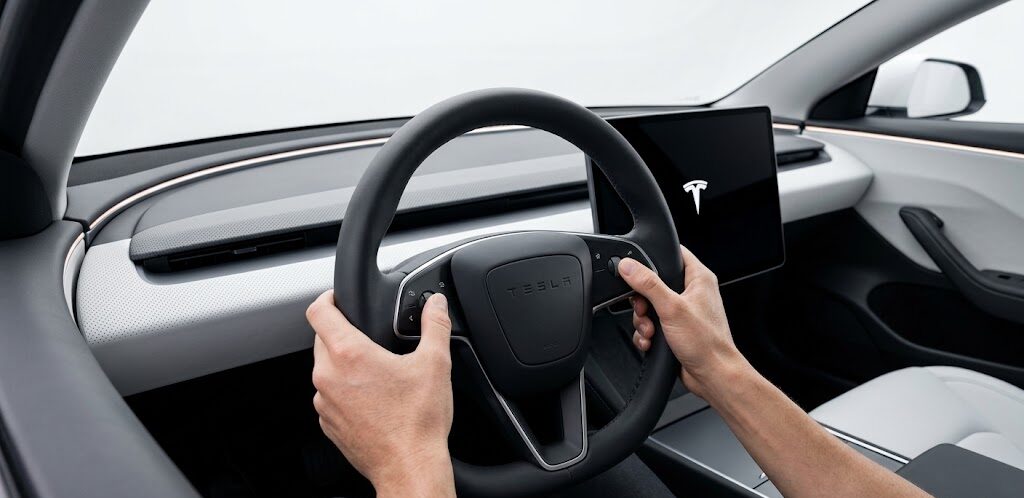
Press and hold both scroll wheels on the steering wheel at the same time.
-
Keep holding for about 10 seconds until the touchscreen goes black.
-
Wait for the white Tesla “T” logo to appear. The system will fully reboot in about 30–60 seconds.
-
2. The Power Cycle (Full Vehicle Reset)
Use this for: Persistent issues with sensors, Autopilot cameras, or climate control. This is deeper than a soft reset; it shuts down the car’s secondary systems and restarts the vehicle’s “brain.”
-
Sit in the driver’s seat with all doors closed.
-
Go to Controls > Safety > Power Off.
-
The Critical Step: Do not touch anything (brake pedal, doors, or screen) for at least two minutes. Use your phone timer; any movement will wake the car back up prematurely.
-
After two minutes, press the brake pedal or open the door to wake the car.
3. The Factory Reset (Erasing Personal Data)
Use this for: Selling the car, returning a lease, or clearing all personalized AI driving data. Warning: This will delete all saved addresses, Spotify logins, and driver profiles.
Option A: Via the Touchscreen
-
Tap Controls > Service > Factory Reset.
-
Enter your Tesla Account email and password to confirm.
Option B: Remote Reset (New for 2026)
If you have already handed over the keys but forgot to wipe your data:
-
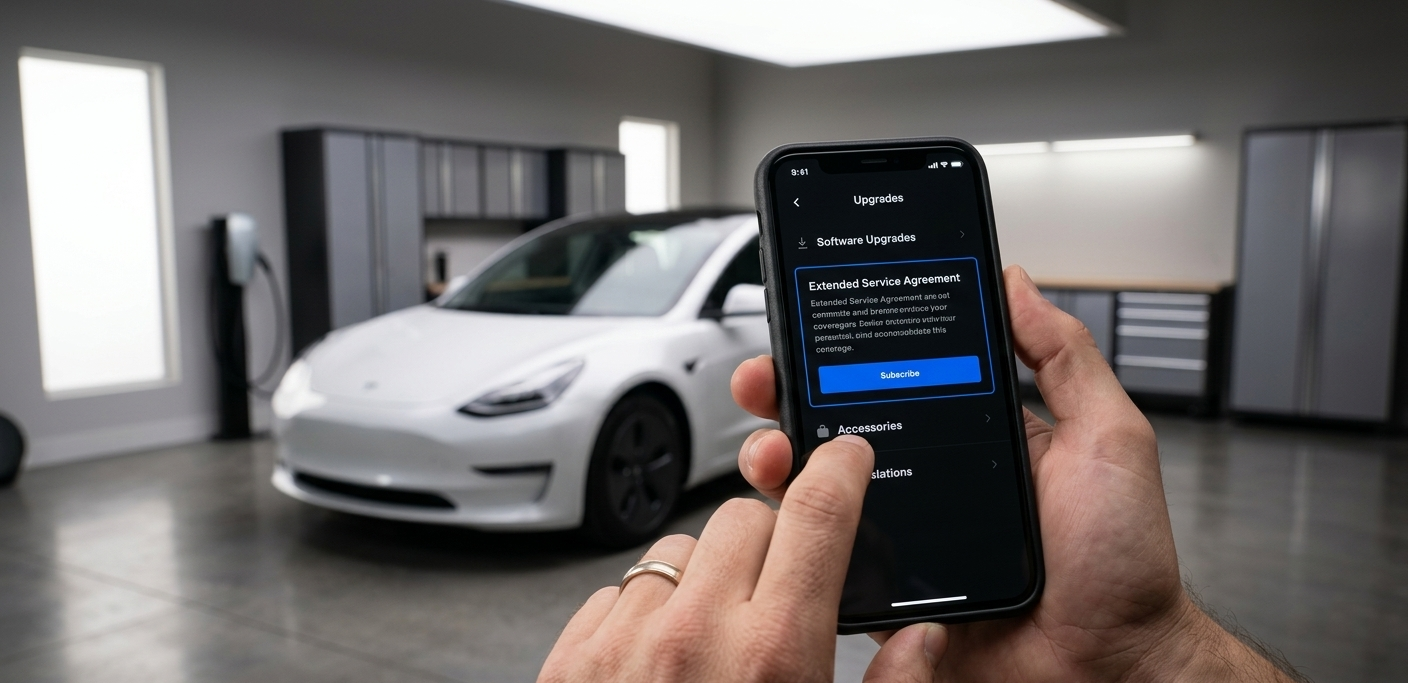
Open the Tesla App.
-
Navigate to Security > Reset Vehicle Data.
-
Follow the prompts to remotely wipe the car (Vehicle must be in Park and connected to Wi-Fi/LTE).
4. Resetting Specific Systems
-
Tire Pressure (TPMS): In 2026, sensors are auto-learning. If you change tires, go to Controls > Service > Tire Pressure > Calibrate. Drive above 15 mph (25 km/h) for 10 minutes to finish the reset.
-
Steering Wheel Position: If the tilt/telescope is acting up, go to Controls > Service > Steering Wheel Calibration.
FAQs: Resetting Your Model 3
Q: Will resetting my Tesla delete my Full Self-Driving (FSD) software?
A: No. A soft or hard reset only restarts the operating system. A Factory Reset wipes user data, but your purchased software upgrades (FSD, Acceleration Boost) stay with the car’s VIN.
Q: Why is my car making a clicking sound during the reset?
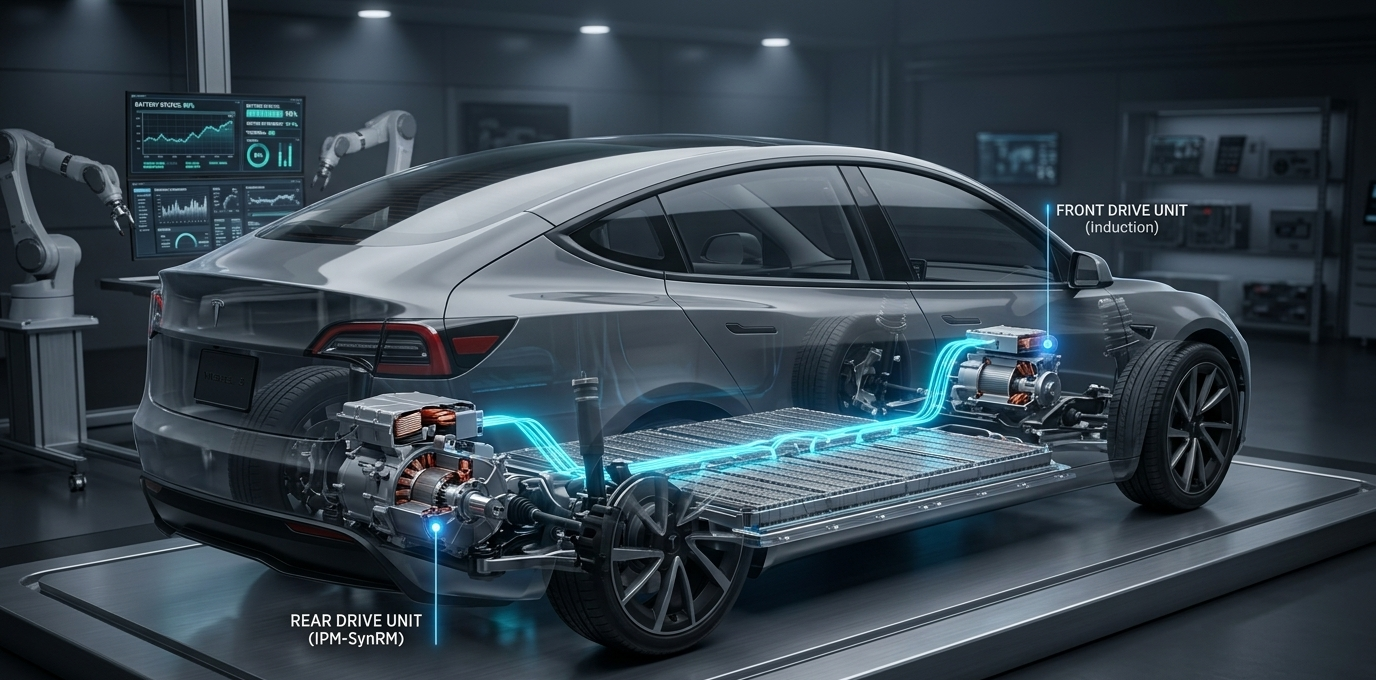
A: This is completely normal. Those are the high-voltage contactors opening and closing as the electrical system power cycles.
Q: Can a reset fix a “System Needs Service” alert?
A: Occasionally, yes, if it’s a software sensor error. However, if the alert persists after a Power Cycle (Method 2), you should use the Tesla App to schedule a service appointment.


Leave a Reply